
Slipstream
Two computers. One flow.
Move between two computers with one keyboard and mouse, copy text and images across your desk, and keep useful files within reach.
What you can do with Slipstream
Move between two computers with one keyboard and mouse, copy text and images across your desk, and keep useful files within reach. Slipstream connects Mac and Windows pairs over your local network or compatible direct USB-C networking. Shared folders, verified file copies and a portable workspace bring your notes, tasks and links together.
- Use one keyboard and mouse across two computers
- Copy text, images and selected files between devices
- Keep project notes, tasks and useful links together
See the workspace
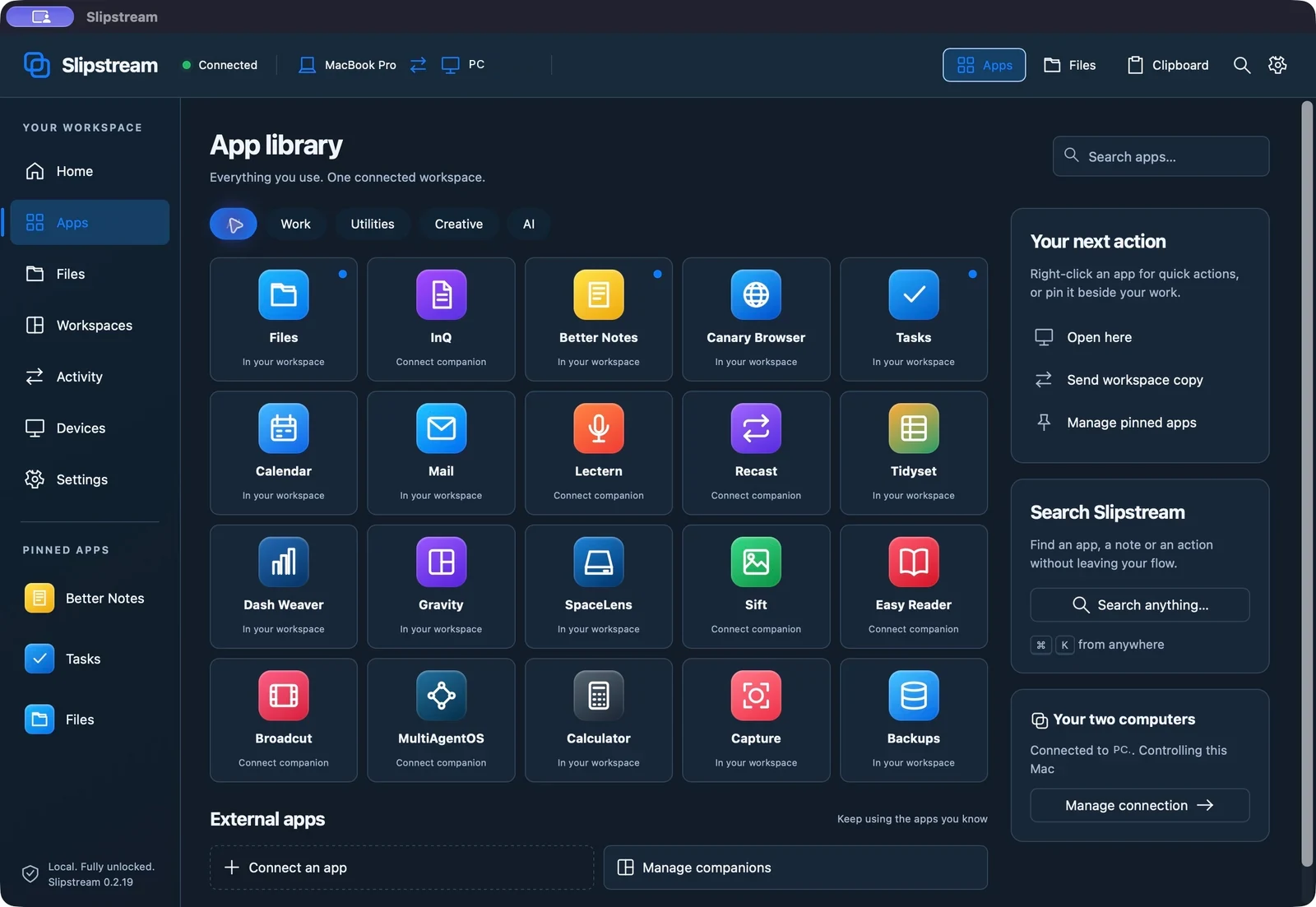
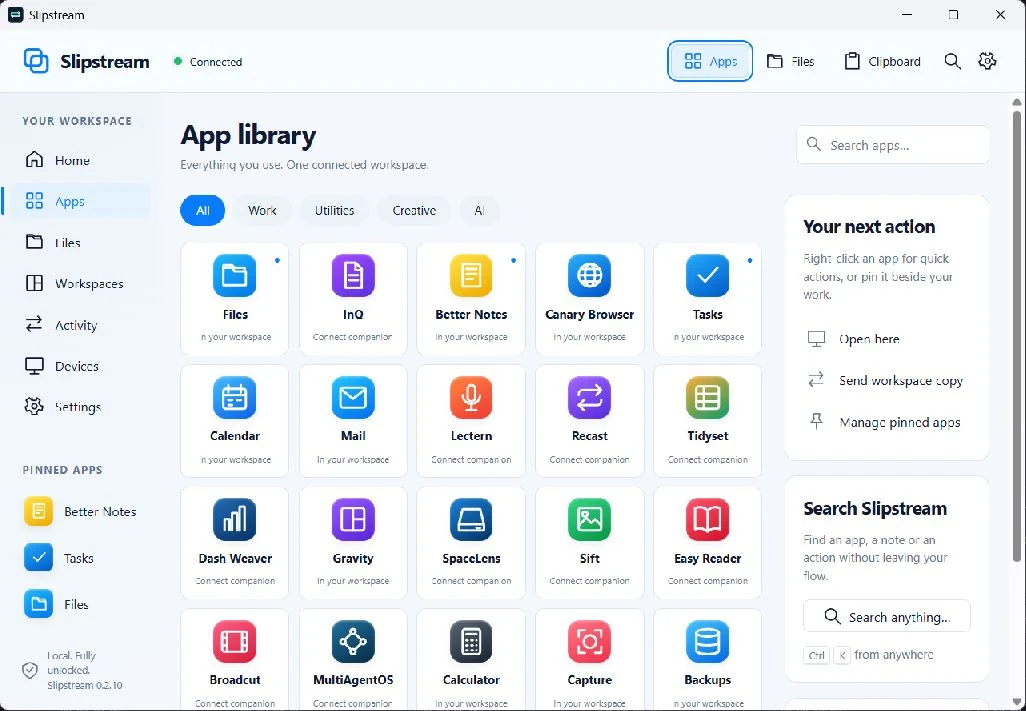
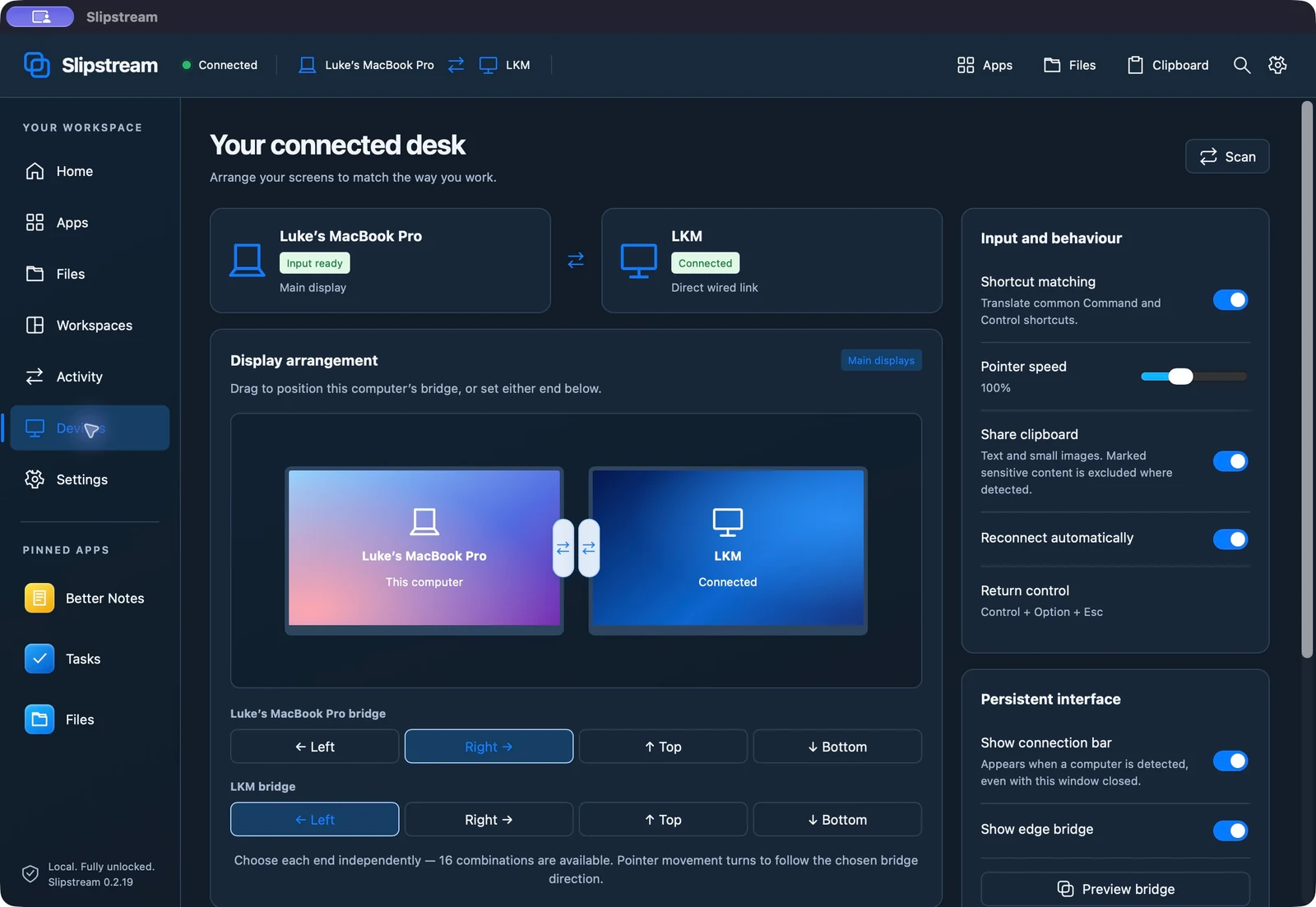
Explore 1 more screenshots
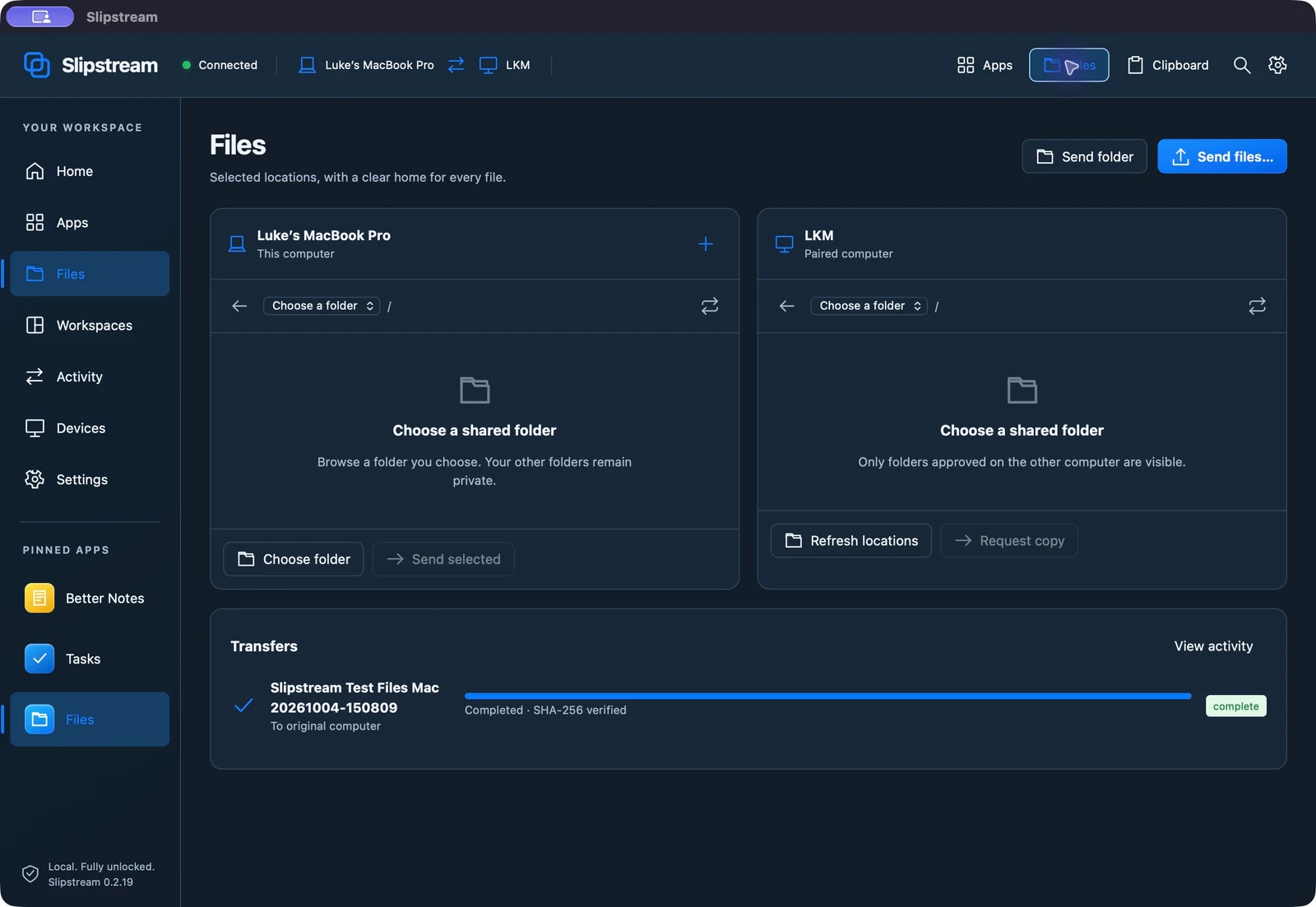
A simple way to get started
Connect your computers
Open Slipstream on both computers and pair them over your local network or compatible direct USB-C networking.
Arrange your desk
Choose how the two screens meet and use one keyboard and mouse to work between them.
Keep work close
Share clipboard text and images, copy selected files, and keep notes, tasks and links in a portable workspace.
Explore more features
- Share one keyboard and mouse across a Mac–Windows, Mac–Mac or Windows–Windows pair, with independently chosen bridge edges
- Choose compatible direct USB-C networking through Thunderbolt/USB4 hardware or explicit local-network mode over Wi-Fi/Ethernet
- Carry text and small PNG clipboard images between the paired computers
- Share explicitly selected folders and copy selected files with resumable transfers and SHA-256 verification
- Choose the receiving destination and keep-both or replace policy before a file copy
- Keep notes, tasks, saved links, local calendar events, mail drafts and layouts in one local workspace
Get Slipstream
Compatibility and installation details
- Requires
- Windows 10/11 x64 or ARM64; macOS 13 or later
- Architecture
- x64 and ARM64; Mac universal (Apple silicon and Intel)
- Version
- 0.2.22
- Download
- 659.7 MB
- Installer
- Slipstream-Mac-0.2.24-Windows-0.2.22.zip
- Publisher signature
- Windows binaries: Unsigned; Mac app Developer ID signed; Mac PKG unsigned, app not notarized
- SHA-256
ddbd0d4005d75301c6c2f2d6e202264e61999a705828b6727ff331e0838f8b63
Mac + Windows, Mac + Mac and Windows + Windows pairs are supported. Install Slipstream on both computers.
Connect over Wi-Fi or Ethernet, or use a suitable Thunderbolt/USB4 data cable with host-to-host networking support at both ports.
The purchase download includes both platform installers. Extract the complete archive and follow the included Quick Start.
Extract the complete download and run the installer for each computer. Keep the files from the archive together.
Installation help · Contact support
Published Mac + Windows download
The complete edition includes both platform installers in one ZIP. Check this package's versions, signing status and checksum against your purchase download before installation.
How to verify the ZIP on Mac or Windows · Set up the connection
Keep the receipt and downloaded archive. Expiring delivery links do not disable an installed app.
- Package
- Slipstream-Mac-0.2.24-Windows-0.2.22.zip
- File size
- 691.7 MB (691714635 bytes)
- Mac version
- 0.2.24 · build 29
- Windows version
- 0.2.22
- Mac signing
- Mac app Developer ID signed; installer PKG unsigned; app not Apple-notarized
- Windows signing
- Windows binaries not Authenticode signed
- ZIP SHA-256
ddbd0d4005d75301c6c2f2d6e202264e61999a705828b6727ff331e0838f8b63
Useful to know
What can I do with Slipstream?
Move between two computers with one keyboard and mouse, copy text and images across your desk, and keep useful files within reach. Slipstream connects Mac and Windows pairs over your local network or compatible direct USB-C networking. Shared folders, verified file copies and a portable workspace bring your notes, tasks and links together.
How do I start?
Open Slipstream on both computers and pair them over your local network or compatible direct USB-C networking. Choose how the two screens meet and use one keyboard and mouse to work between them. Share clipboard text and images, copy selected files, and keep notes, tasks and links in a portable workspace.
How do I receive my download?
After your purchase, the receipt page provides your download link. The exact expiry is shown with your delivery link. Keep your receipt and installer. If a link expires or a download fails, contact support with your receipt instead of buying again.
Where can I find setup help?
Compatibility and installation details are on this page. The installation guide and support team can help with the next step.